


Soldering Update

Soldering services will be available later in 2026. Stay tuned for practice soldering videos.

I get several calls a week about broken HDMI ports on PlayStation and Xbox consoles. Fixing those usually requires soldering a new HDMI port directly onto the motherboard.

At the moment, I’m not taking on those repairs — but that will change. Later in 2026, I plan to offer full soldering services for clients.

As I build my professional soldering skills, I’ll be sharing YouTube videos and blog posts documenting the process, the tools I’m using, the skills I’m learning, and the real‑world challenges that come with this kind of work. Stay tuned!
What Are Virtual Machines?

Want to run a Windows, Mac, or Linux operating system beta before it’s released to the public? Maybe you want to play an older game or use a program from 20 years ago that you can’t to work in Windows 11? A virtual machine makes that a reality. It can be done on your current computer. The video above explains virtual machines in more detail.

Note On Same-Day Repairs

Repair shop workbench

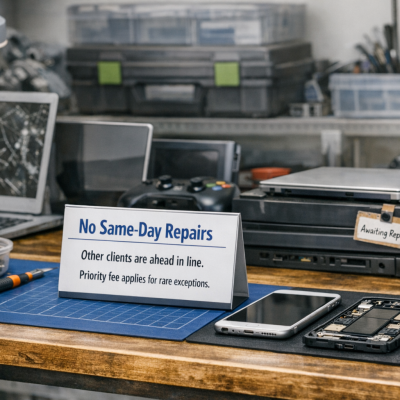
I’m not able to provide same-day emergency service for shop repairs. That’s unrealistic for me to provide a professional job. Other clients are in line waiting. Also, mistakes are made when in a rush. There are rare exceptions where I could complete the work in a couple of hours. A $50 priority fee will be added on bill if other jobs are in the shop.

Windows 11 January Update Causing Printer Problems (KB5077744)

Windows 11 printer not working after KB5077744 January Windows update

If your printer suddenly stopped working after the January Windows 11 update, you’re not alone. The monthly update KB5077744 has been causing a variety of printing issues for home users and businesses.

One of the most common problems I’ve been seeing is print jobs getting stuck in the queue — but not in the way most people expect. The print queue window may look completely empty, yet Windows is still holding onto temporary spool files behind the scenes.

What I’ve Seen in the Field

I’ve already run into this issue on two separate HP computer systems this month. In both cases:

  • The print queue showed no active jobs, but the printer wasn’t working
  • Windows was leaving behind temporary spool files that should should have been deleted after each print job

These leftover files build up inside the Windows system32\spool\printers folder.

Once those files were removed, printing worked normally again.

In a few cases, I’ve also seen actual stuck print jobs remaining in the queue, but the temporary files in the spool folder are the main cause of the problem.

Why This Happens

The January update introduced a bug in the print spooler — the Windows service that manages print jobs. When the spooler fails to delete temporary files after printing, the system gets jammed even though the queue appears empty. Nothing else can print until those files are cleared.

A Quick Fix for Most Users

To make this easier, I’ve created a small batch file that can be downloaded below:

  • Stops the print spooler                                     net stop spooler
  • Clears the leftover temporary files                 del %systemroot%\System32\spool\PRINTERS\*.* /Q
  • Restarts the print spooler                                net start spooler

This resolves the issue in most cases. 

Download

Directions: Download the batch file from link above. Right-click on the file when you want to open, and select Run as Administrator. Click Run when it asks if you want to run this software. If needed, click Run again. It won’t work if not done as Administrator.

Using a PCI Express Adapter For NVMe Solid State Drive Compatibility

Crucial P310 PCI Express Gen4 NVMe 2280 M.2 solid state drive

The Asrock Z390 Taichi Ultimate motherboard was not recognizing newer generation 4×4 PCI Express NVMe solid state drives. Compatibility was limited to specific older drives listed in the SSD support QVL (quality vendor list). That means those drives were tested and guaranteed to work with the motherboard. 

When I attempted to use a Crucial P310 2TB Gen 4 SSD, the system failed to recognize it. This was the first time I had encountered a motherboard that refused newer Gen 4 drives. After researching solutions, many suggested using a PCI Express x16 adapter card.

I choose the Sabrent adapter, which includes an M.2 NVMe slot. Installation was straightforward: insert the SSD, close the heatsink, and place the adapter into an empty PCI Express x16 slot. No changes were required in Windows or the BIOS — the Crucial drive was detected automatically. It appears the motherboard’s built-in M.2 NVMe slots can no longer be used with newer SSD’s.

Tip for Readers:

If your motherboard doesn’t recognize a newer NVMe SSD, don’t assume the drive is bad. Check the manufacturer’s QVL (Qualified Vendor List) first to confirm compatibility. If your drive isn’t listed, a PCI Express x16 adapter card can be a simple workaround — just make sure you have an open slot available. This lets you use newer generation 4+ drives even on older boards without complicated BIOS and Windows modifications. Replacing the motherboard isn’t necessary!