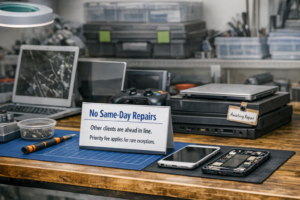


Note On Same-Day Repairs

I’m not able to provide same-day emergency service for shop repairs. That’s unrealistic for me to provide a professional job. Other clients are in line waiting. Also, mistakes are made when in a rush. There are rare exceptions where I could complete the work in a couple of hours. A $50 priority fee will be added on bill.

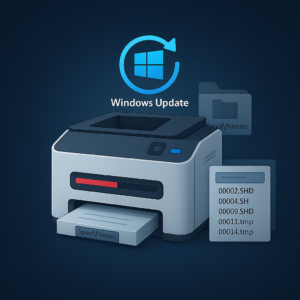
Windows 11 January Update Causing Printer Problems (KB5077744)

If your printer suddenly stopped working after the January Windows 11 update, you’re not alone. The monthly update KB5077744 has been causing a variety of printing issues for home users and businesses.

One of the most common problems I’ve been seeing is print jobs getting stuck in the queue — but not in the way most people expect. The print queue window may look completely empty, yet Windows is still holding onto temporary spool files behind the scenes.

What I’ve Seen in the Field

I’ve already run into this issue on two separate HP computer systems this month. In both cases:

  • The print queue showed no active jobs, but the printer wasn’t working
  • Windows was leaving behind temporary spool files that should should have been deleted after each print job

These leftover files build up inside the Windows system32\spool\printers folder.

Once those files were removed, printing worked normally again.

In a few cases, I’ve also seen actual stuck print jobs remaining in the queue, but the temporary files in the spool folder are the main cause of the problem.

Why This Happens

The January update introduced a bug in the print spooler — the Windows service that manages print jobs. When the spooler fails to delete temporary files after printing, the system gets jammed even though the queue appears empty. Nothing else can print until those files are cleared.

A Quick Fix for Most Users

To make this easier, I’ve created a small batch file that can be downloaded below:

  • Stops the print spooler                                     net stop spooler
  • Clears the leftover temporary files                 del %systemroot%\System32\spool\PRINTERS\*.* /Q
  • Restarts the print spooler                                net start spooler

This resolves the issue in most cases. 

Download

Directions: Right-click on the batch file when you want to open, and select Run as Administrator. Click Run when it asks if you want to run this software. If needed, click Run again. It won’t work if not done as Administrator.

Using a PCI Express Adapter For NVMe Solid State Drive Compatibility

The Asrock Z390 Taichi Ultimate motherboard was not recognizing newer generation 4×4 PCI Express NVMe solid state drives. Compatibility was limited to specific older drives listed in the SSD support QVL (quality vendor list). That means those drives were tested and guaranteed to work with the motherboard. 

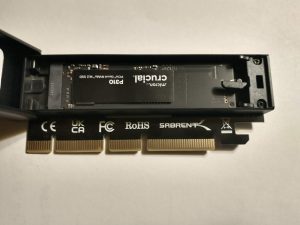
When I attempted to use a Crucial P310 2TB Gen 4 SSD, the system failed to recognize it. This was the first time I had encountered a motherboard that refused newer Gen 4 drives. After researching solutions, many suggested using a PCI Express x16 adapter card.

I choose the Sabrent adapter, which includes an M.2 NVMe slot. Installation was straightforward: insert the SSD, close the heatsink, and place the adapter into an empty PCI Express x16 slot. No changes were required in Windows or the BIOS — the Crucial drive was detected automatically. It appears the motherboard’s built-in M.2 NVMe slots can no longer be used with newer SSD’s.

Tip for Readers:

If your motherboard doesn’t recognize a newer NVMe SSD, don’t assume the drive is bad. Check the manufacturer’s QVL (Qualified Vendor List) first to confirm compatibility. If your drive isn’t listed, a PCI Express x16 adapter card can be a simple workaround — just make sure you have an open slot available. This lets you use newer generation 4+ drives even on older boards without complicated BIOS and Windows modifications. Replacing the motherboard isn’t necessary!

2025 Nextdoor Neighborhood Fave

🎉 Computer Repairs & Solutions LLC has been voted a 2025 Nextdoor Neighborhood Faves winner. I appreciate all of you! Thanks for your support and consideration for this award.
—————————————————————

Neighbors Name Computer Repairs & Solutions LLC a “2025 Nextdoor Neighborhood Fave” in Nextdoor’s 9th Annual Local Business Awards

 
[Green Bay / Ashwaubenon WI November 18 2025] — Computer Repairs & Solutions LLC has been named a 2025 Nextdoor Neighborhood Fave, the annual awards program that recognizes local businesses loved by neighbors.
 
This year’s winners of Neighborhood Faves will receive greater visibility on the Nextdoor app, a Neighborhood Fave badge on their Nextdoor Business Page, and a “2025 Neighborhood Faves Winner” sticker to display in their storefront.
 
“Local businesses are the cornerstone of our communities, and the Neighborhood Faves awards are our way of celebrating the establishments that neighbors love most,” said Nirav Tolia, CEO of Nextdoor. “We are proud to recognize this year’s winners for their outstanding contributions. Being a Neighborhood Fave is a powerful testament to the meaningful impact they have on their communities every day.”
 
Selected by the volume of neighbor ‘Faves’ and recommendations on the platform from the past year, the Neighborhood Faves awards recognize the most beloved local businesses on Nextdoor.
 

Complete list of winning businesses

Join the neighborhood network by downloading the Nextdoor app in your favorite app store or visiting Nextdoor.
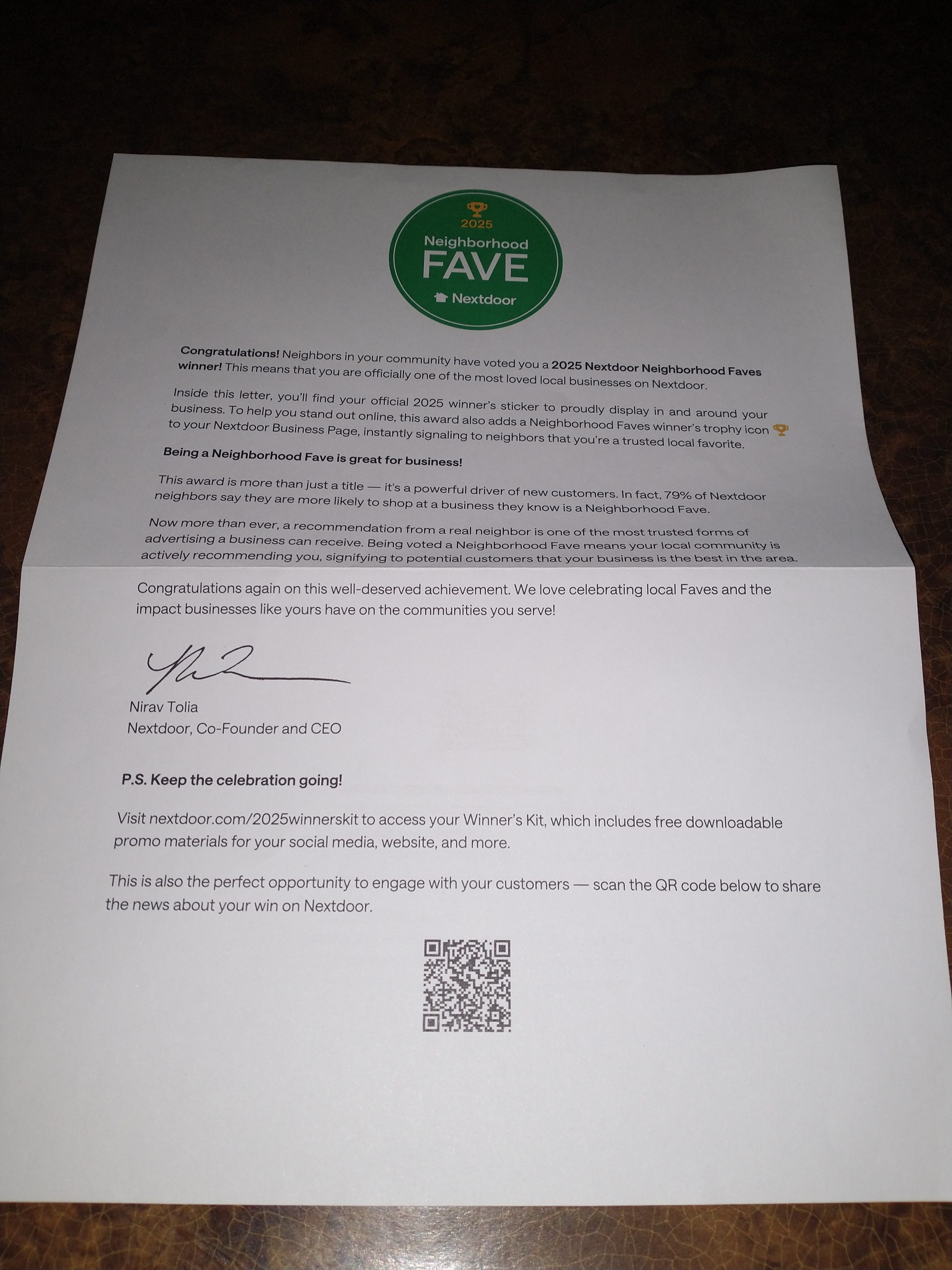
2025 nextdoor neighborhood fave letter

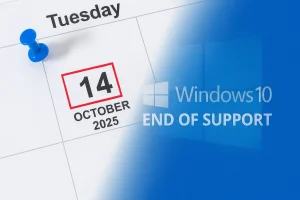
The End Of An Era: Windows 10 Support Officially Ends

Windows 10 has been a reliable workhorse for over a decade, but its time has officially come to a close. Microsoft officially ended support for Windows 10 on October 14, 2025. That means no more free security updates, bug fixes, or technical support. While your PC won’t suddenly stop working, it will become more vulnerable to malware, ransomware, and other threats over time. If you’re still using Windows 10, now’s the time to decide your next move.

Here are the options customers have with Windows 10 reaching end of life.

  • Upgrade to Windows 11 if your computer meets the minimum requirements
  • Enroll in Microsoft’s Extended Service Updates (ESU) to get updates through October 13 2026. The cost is $30 per year, but you can get ESU free by using Windows Backup or redeeming 1,000 Microsoft Rewards points. Renewal is required each year to continue receiving updates.
  • Buy a new Windows 11 computer
  • Expert users: Consider switching to a different operating system (Linux Mint or ChromeOS Flex are popular alternatives)
  • Do nothing: Your PC will still run, but without updates, it becomes increasingly risky. Apps and programs will eventually stop supporting Windows 10

Overwhelmed? Not sure what to do next? I can install Windows 11 for you, walk you through Microsoft’s ESU program, or help you choose the best path forward.