
If your printer suddenly stopped working after the January Windows 11 update, you’re not alone. The monthly update KB5077744 has been causing a variety of printing issues for home users and businesses.
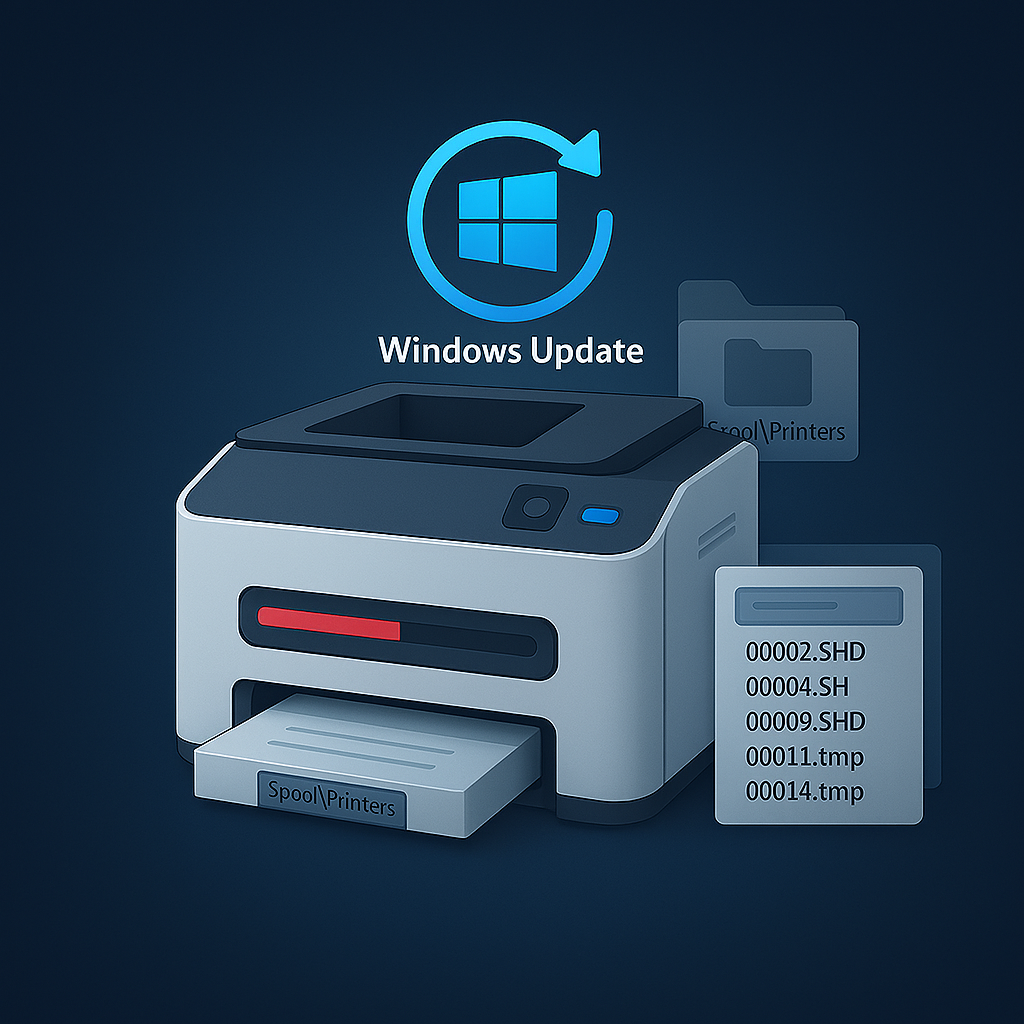
One of the most common problems I’ve been seeing is print jobs getting stuck in the queue — but not in the way most people expect. The print queue window may look completely empty, yet Windows is still holding onto temporary spool files behind the scenes.
What I’ve Seen in the Field
I’ve already run into this issue on two separate HP computer systems this month. In both cases:
- The print queue showed no active jobs, but the printer wasn’t working
- Windows was leaving behind temporary spool files that should should have been deleted after each print job
These leftover files build up inside the Windows system32\spool\printers folder.
Once those files were removed, printing worked normally again.
In a few cases, I’ve also seen actual stuck print jobs remaining in the queue, but the temporary files in the spool folder are the main cause of the problem.
Why This Happens
The January update introduced a bug in the print spooler — the Windows service that manages print jobs. When the spooler fails to delete temporary files after printing, the system gets jammed even though the queue appears empty. Nothing else can print until those files are cleared.
A Quick Fix for Most Users
To make this easier, I’ve created a small batch file that can be downloaded below:
- Stops the print spooler net stop spooler
- Clears the leftover temporary files del %systemroot%\System32\spool\PRINTERS\*.* /Q
- Restarts the print spooler net start spooler
This resolves the issue in most cases.